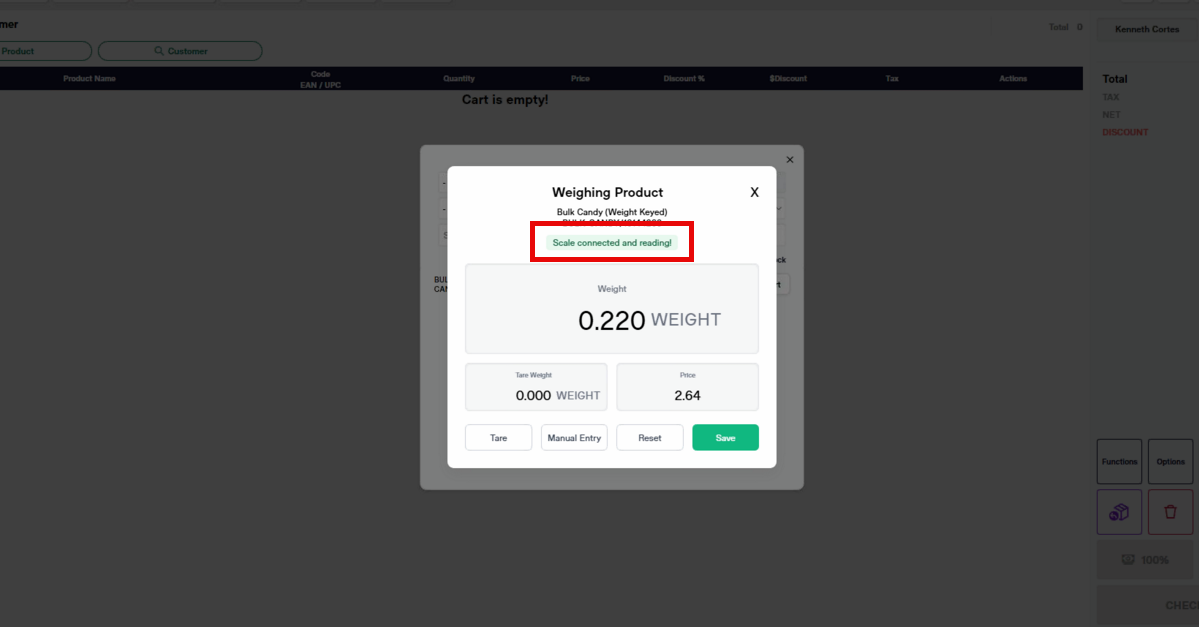
This guide is a walkthrough on how to install scale microservice to your computer.
Installing extdev-microservice
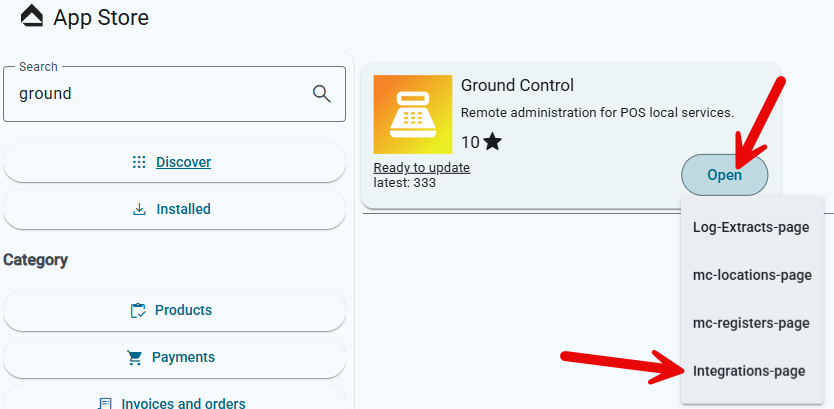
1. From your App Store > Search the keyword "ground" > Click Open > integrations-page
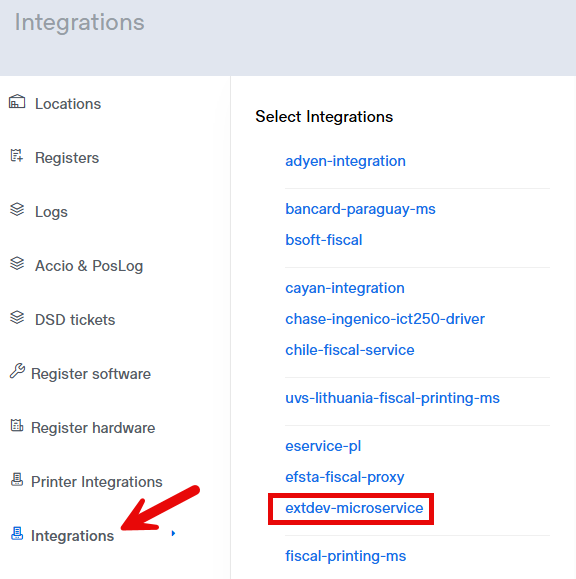
2. From the Ground Control Page > Click Integrations > Select extdev-microservice
3. Select the Register by clicking the edit button here:

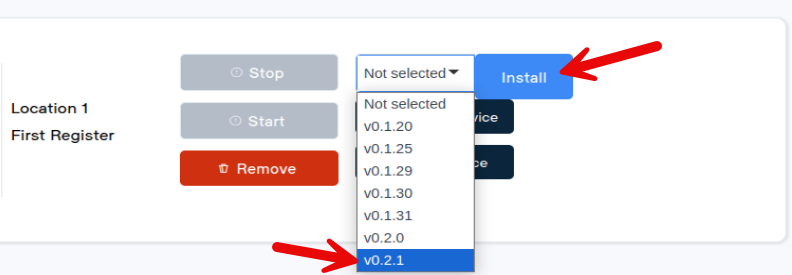
4. On the Register installation page install the latest version by clicking the dropdown > Click the latest version > Install
5. Once installed, Click Start to make the microservice running > Then click Load from device.
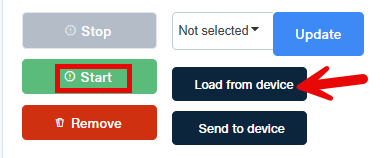
6. Details config should now be auto-populated with the default configuration.
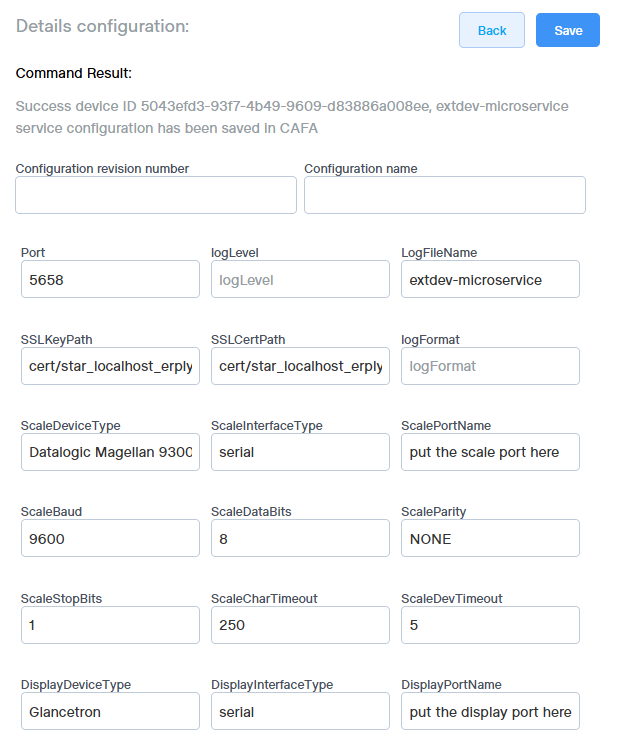

7. Fill up the necessary config according to the data below:
Example Scale Configurations (For windows device)
| Field | CAS Type-5 (CAS PD-II) | CAS Type-6 (Sweda-34F, CAS ER-JR (SB), CAS FR-JR (CB)) | Datalogic Magellan 9300i/9400i |
| ScaleDeviceType | CAS Type-5 | CAS Type-6 | Datalogic Magellan 9300i/9400i |
| ScaleInterfaceType | serial | serial | serial |
| ScalePortName | (port your scale is connected to) | (port your scale is connected to) | (port your scale is connected to) |
| ScaleBaud | 9600 | 9600 | 9600 |
| ScaleDataBits | 7 | 8 | 8 |
| ScaleParity | 2 (Even) | 0 (None) | 0 (None) |
| ScaleStopBits | 1 | 1 | 1 |
| ScaleFlowControl | false | false | true |
| ScaleCharTimeout | 250 ms | 250 ms | 250 ms |
| ScaleDevTimeout | 1 s | 1 s | 1 s |
| ScaleBcc | false | false | false |
Check scale integration in Flax POS
1. Open your Flax POS
2. Ring up a weighted item
3. This prompt should show after you ring the item