If you'd like to know how to return products in the back office, read this article.
Setting Up permissions for returns
Back Office -> Settings -> Users -> Select the user (check “Accept returns without receipt” and “Void transactions in POS and accept returns with receipt” permissions)
Product Return rules are set up in the Back Office. You can define rules to determine when an order is eligible for returns and enable/restrict certain employees to return a product.
Setting Up Return Reason Codes
Back Office -> Settings -> All Settings -> Other Settings -> Reason Codes
Navigating to the Back Office Settings will allow you to set up return reason codes. Erply lets you set up an unlimited amount of return reason codes, which can be edited at any time. Reason codes can be assigned a custom purpose to ensure that your employees know exactly when an order qualifies for a return and when it doesn’t.
Common reason codes: Defective product, incorrect color, expired item.
Reason code uses: inventory write-offs, POS discounts, POS returns.
Returning With a Receipt in the POS
Press the red Return button.
Scan in the receipt barcode or manually enter the receipt number and then search.
Check off the products that the customer is returning.
Press Save when you’re done.
All returned items will have a negative quantity, meaning this item is going back into stock and the net total will be a negative amount.
Click Pay to initiate the return.
You can return payment to whatever tender type is allowed in your Erply account. By default the original payment tender is presected in the payment window, but it can be changed if click on it and remove. After that please choose another one.
Confirm the return by pressing the green checkmark button.
You will receive a confirmation notice with the credit invoice and an option to print the receipt or send it to the customer via email:

Returning Without a Receipt
It is always recommended to do a return by receipt. If necessary, you can return by item as an alternative.
Start by adding the items up for return to the cart.
Edit the line item to change the quantity from 1 to -1. This -1 means the item is going back into stock, and the net total should be negative.
Click Pay to move to the payment screen.
Select the payment method and the amount you are returning to the customer (generally cash).
Confirm the return by pressing the green checkmark button.
You will receive a confirmation window with the credit invoice number and an option to print the receipt or send it to the customer via email.
Configure Payment Methods for Returns in the Brazil POS
It is possible to set up the payment methods that are allowed on returns.
In order to do that please follow steps below:
- Open POS Settings -> Payment Configuration
- Configure “Allowed tenders on return with receipt” - in order to enable put checkmarks and set the limit if necessary.
- Configure "Allowed tenders on return without receipt - - in order to enable put checkmarks and set the limit if necessary.
- Press “Save”.
Exchanging Instead of Returning
The user can combine products with both positive and negative quantities in a transaction.
In order to do that toggle this setting in the POS Settings -> Configuration -> Sale -> Allow Positive Quantities (Exchange Products) On Returns (Note: This should be discussed with your bookkeeper beforehand, to make sure they are OK with it.)
When the setting is DISABLED: the POS does not allow to sell and return products in one receipt. In this case there should be two separate documents created.
When the setting is ENABLED: the POS allows to create a document where one part of products is returning (negative quantity) and another part of products is selling (positive quantity).
Return Store Credit
If you'd like to give store credit when accepting returns, instead of paying the customer the amount back, follow these steps.
In the POS, when you've initiated the return, click Pay.
It will automatically fill the payment type with the original type of the document. You will need to change this.
Click on the payment amount (the highlighted box in the image below) and change it to zero.
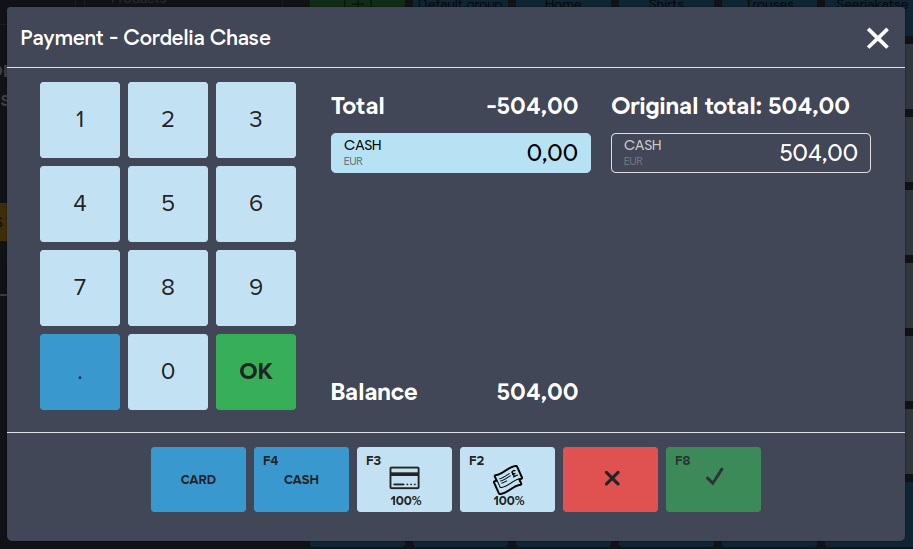
After changing it to zero, click on OK. Then, from the next view, click on Store Credit and Confirm.
Now the amount of the original payment will be added to the customer's balance.
Editing the Price of the Returned Product
In the Brazil POS, during returning with a receipt, the user can not perform any price changes: edit a price or apply any discount. If you try to edit the price or apply a discount in the product edit window, the POS will not accept these changes and give a warning message.
This setting allows users to have a possibility to change prices and apply discounts to the returning or exchanging of products. After saving the price changes, the shopping cart will be updated and the user will be able to proceed with the return/exchange.
Enable this setting in POS Settings -> Configuration -> Sale -> Allow Price Editing for Exchanges and Referenced Returns.
Processing Card Returns
All payment processors have different ways to complete a card transaction refund, you’ll need to follow two basic steps to return card payments at the POS.
- Process the return in Erply
- Follow the return instructions provided by your CC processor
When processing external sales, be sure to enable the setting that allows cashiers to capture card type and authorization codes at the POS(more information about external card payment and settings please refer to this article). This will provide you with vital information to complete the return through your payment processor.
If you’re unsure of the steps to refund a card transaction, be sure to contact your payment processor.
When making a return, the payment window will pop up and you can choose to make a partial or full return. From here, you’ll need to follow the return steps provided by your payment processor.
Enabling card type and authorization codes at the POS
Navigate to POS settings and select Configuration.
Scroll down to the Payments section and check the box labeled Require card type on external device.
Card payments at the POS will now prompt you to select a card type and enter the authorization code.
A card’s authorization code is located on the receipt that prints out for the customer.
Note: The transaction will still go through if the authorization code field is left blank.
Terms to Know
Store Credit: An alternative to cash refunds. Allow customers to accumulate a non-currency balance, which can be applied to later store purchases
Gift Card: A gift card is a pre-paid, non-currency balance that can be spent within your store as an alternative to cash or credit.
Frequently Asked Questions
Is there a limit to how many return/reason codes I can create?
No.
Can I return the same receipt multiple times?
No.
What is the difference between a void and a refund?
Voids are used on card purchases where the transaction is incomplete and has not been processed by a bank. Once a payment has been processed by a bank, a transaction fee will occur and the purchase can no longer be voided.
Refunds are used on orders where a transaction has been processed by the bank. Customers have the ability to dispute transactions that have been processed.
Check with your payment gateway to learn how long your processing times are.
What are the minimum rights I need to give to an employee so they can make returns?
We have an article just for that! Check it out here.